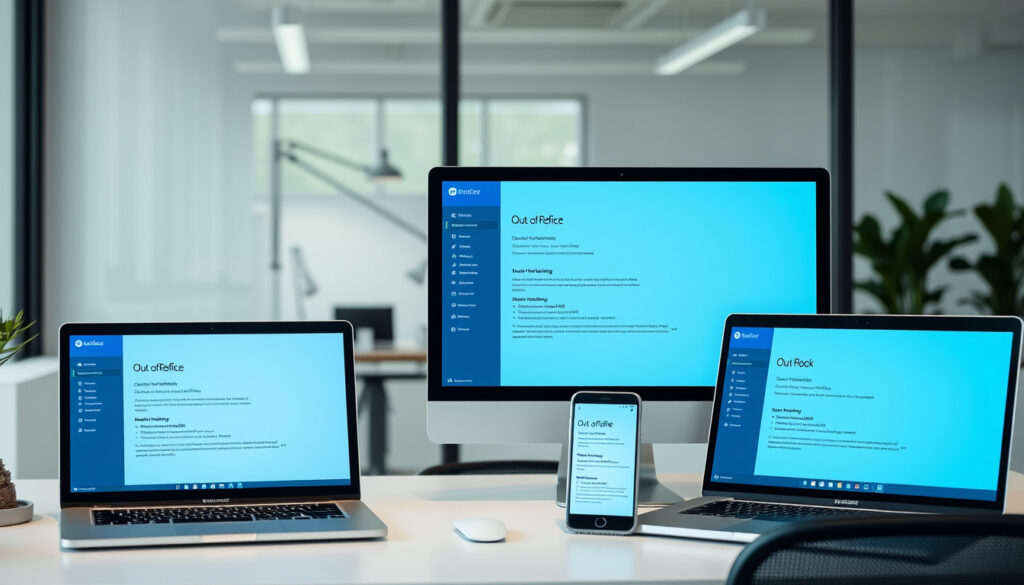
How to Set Out of Office in Outlook: Desktop, Web, Mobile
If you’re heading out for a few days and dread the flood of unanswered emails waiting when you return, Outlook’s automatic reply feature is the fix. This guide walks you through the correct steps for every Outlook version—desktop, web, and mobile—backed by Microsoft’s official instructions.
Desktop Outlook: File > Automatic Replies ·
Outlook Web: Settings > Mail > Automatic replies ·
New Outlook: View > View settings > Accounts > Automatic Replies ·
Mobile App: Settings > Automatic Replies toggle ·
Mac Outlook: Settings > Accounts > Automatic Replies
Quick snapshot
- File > Automatic Replies works in classic Outlook desktop for Windows (Microsoft Support)
- Server-side replies work 24/7 even when Outlook is closed (Absentify)
- Replies send only once per sender during the active period (Microsoft Support)
- Exact mobile UI steps vary across iOS and Android versions (YouTube)
- New Outlook Mac path slightly differs from Windows version (YouTube Tutorial)
- New Outlook interface rollout active across Microsoft 365 in 2026
- Classic File menu being phased out gradually
- Microsoft 365 accounts get full server-side automatic replies
- POP3/IMAP accounts require rules-based workarounds
Key fact: Automatic replies require Exchange or Microsoft 365 connectivity to appear as a menu option. The table below maps the exact navigation path for each supported platform.
| Platform | Path | Source |
|---|---|---|
| Outlook Classic Desktop | File > Automatic Replies | Microsoft Support |
| New Outlook | Settings > Accounts > Automatic Replies | Automa.site |
| Outlook Web | Settings > Accounts > Automatic Replies | Microsoft Support |
| Outlook Mac Classic | Tools > Automatic Replies | Kutztown University IT |
| Supported Platforms | Desktop, Web, Mobile, Mac | — |
| Account Requirement | Exchange, Microsoft 365 | — |
| New Outlook Path | View settings > Accounts | Microsoft Support |
How to set up out of office automatic replies in Outlook
Microsoft gives classic Outlook desktop users the most control. The process lives behind the File menu, which Microsoft is slowly retiring in favor of a ribbon-based interface. Regardless, the steps below cover what works today across Windows desktop installations.
Desktop version steps
- Open Outlook and click the File tab in the top-left corner
- Select Automatic Replies from the menu bar
- Toggle on the feature using the “Turn on automatic replies” switch
- Write your message in the inside-organization box, then switch to the outside-organization tab for external senders
- Click OK to activate
“Automatic Replies respond to incoming emails. They don’t route, categorize, or escalate messages beyond basic rules.”
Time period option
If you know exactly when you’ll be back, use the time-bound option. Check the box labeled “Send replies only during a time period” and set your start and end dates. This prevents you from forgetting to turn replies off manually when you return to the office.
The external sender options deserve attention too. Microsoft recommends selecting “My contacts only” to avoid triggering replies to newsletters, marketing emails, and spam. Without this filter, your out-of-office reply goes to every sender—and that’s a quick way to signal to spammers that your inbox is active.
What this means: desktop rules only fire when Outlook is running. If you close the app at 5 PM Friday and someone emails you at midnight, they won’t get a reply until Monday morning when you reopen Outlook.
Server-side Exchange replies work around the clock. Client-side rules are convenient but useless when Outlook is closed.
How do I put my out of office on the Outlook app?
The Outlook mobile app handles automatic replies slightly differently than the desktop version. The interface keeps things simple with a single toggle, though the exact path has minor variations between iOS and Android.
iPhone and Android steps
- Open the Outlook app and tap the Settings gear icon at the bottom of the screen
- Scroll down and select your email account
- Tap Automatic Replies
- Flip the toggle to turn replies on
- Compose your message and set a time window if needed
Mobile users typically need replies active while they’re away from their desk. The app mirrors the web version’s server-side setup, meaning replies fire even when your phone is in airplane mode.
Toggle switch activation
The main difference from desktop is visual: instead of separate tabs for inside/outside org messages, the app condenses everything into one unified screen. You can still choose who receives replies by tapping the scope options.
The catch: if your organization uses POP3 or IMAP rather than Exchange/Microsoft 365, you won’t see the Automatic Replies option at all. Those account types lack server-side support, and Microsoft hasn’t built a workaround into the mobile app.
How to set out of office in Outlook Web?
Outlook on the web offers the cleanest interface for this task. The path has been consistent for years, and since replies process server-side, you can set it before you leave the office and forget about it entirely.
Web app navigation
- Click the gear icon in the top-right corner of Outlook.com or Outlook.office365.com
- Choose View all Outlook settings at the bottom of the settings panel
- Navigate to Mail > Automatic replies
- Toggle on automatic replies
- Optionally restrict replies to specific senders or time windows
- Click Save
One quirk worth knowing: the web version sends replies server-side, which means they fire even when your laptop is shut off. According to Absentify’s cross-platform comparison, this is the key advantage over desktop rules. Workers on hybrid schedules benefit most from this behavior.
“Sending automatic replies to anyone outside my organization will send your automatic reply to every email, including newsletters, advertisements, and potentially, junk email.”
— Microsoft Support (official documentation)
The implication: setting “All senders” for external replies is a privacy and etiquette risk. The safer play is “My contacts only,” which limits replies to people you’ve already vetted.
How do I set out of office in Outlook Mac?
Mac users face a split path depending on whether they’re running classic Outlook or the newer unified app. The classic version hides its automatic replies two levels deep in the menu structure.
Mac-specific path
- Launch Outlook on your Mac
- For classic Outlook: Click Tools in the menu bar, then select Automatic Replies
- For New Outlook Mac: Go to Settings > Accounts > Automatic Replies
- Compose your message and configure time/sender filters
- Confirm the settings
According to UPenn Computing’s guide for PennO365, some university Mac installations route the option through a Tools tab labeled “Out of Office” rather than the standard “Automatic Replies.” If you’re on an institutional account, check with your IT department for the exact label.
The pattern across platforms is consistent once you know where to look: Microsoft has consolidated around the Settings/Accounts path across web and newer clients, while classic desktop and older Mac versions retain the older menu structures. Mac Mail users can work around this using Mail > Preferences > Rules > Add Rule, though this requires more manual setup.
If you manage multiple email accounts in Outlook Mac, select the correct account before configuring replies. The setting applies per-account, not globally.
Why is there no option for automatic replies in Outlook?
If you’ve dug through every menu and still can’t find automatic replies, the issue is almost always account type. This feature requires Exchange or Microsoft 365 connectivity—it won’t appear for basic POP3 or IMAP accounts.
New Outlook differences
The newer Outlook interface for Windows deliberately removed the File menu that housed Automatic Replies in classic desktop. If you’re on the new version, Microsoft directs users to View > View settings > Accounts instead. This reorganization confuses people who’ve used Outlook for years.
As Microsoft Learn community discussions explain, the new Outlook lacks the File > Automatic Replies entirely. The feature moved to the Accounts section under Settings, which requires knowing to look there.
Account type requirements
Exchange and Microsoft 365 accounts process automatic replies server-side through Exchange Online. POP3 and IMAP accounts can’t use this feature at all—Microsoft’s servers simply don’t handle the routing for those protocols.
“If your account does not replace the absence feature (e.g., POP3/IMAP accounts), you will not find ‘Automatic Replies’.”
What this means for workers: if your company uses a free Outlook.com account rather than an organizational Microsoft 365 license, you’re stuck without this feature. The workaround is Outlook on the web, which offers some rules-based automation, or third-party tools like Absentify that handle activation through different channels.
The best practice for anyone managing their own inbox: check your account type before planning time away. An Exchange-connected account takes 60 seconds to configure; a POP3 setup requires a more creative workaround.
Related reading: Step-by-Step Guides
After enabling automatic replies on desktop or web, dive deeper with this comprehensive setup guide covering Outlook for Mac, mobile, and beyond.
Frequently asked questions
How do I turn on out of Office in Outlook?
The steps vary by platform: Desktop uses File > Automatic Replies; Web uses Settings > Mail > Automatic replies; New Outlook uses View > View settings > Accounts. Microsoft 365 accounts are required for the feature to appear.
Can I set my out of Office from my phone?
Yes. Open Outlook app > Settings > your account > Automatic Replies > toggle on. Server-side processing means replies work even when your phone is off or in airplane mode.
How to set out of office in Outlook 365?
Microsoft 365 uses the same paths as standard Outlook. On the web: Settings > Mail > Automatic replies. On desktop: File > Automatic Replies. The Microsoft 365 license enables Exchange server-side processing.
How to set out of office in Outlook calendar for others?
Calendar integration is separate from automatic replies. Set an out-of-office calendar event and mark yourself as “Out of Office” in your status. Recipients see this in meeting invitations and your free/busy indicator.
How to set out of office in Teams?
Teams automatically syncs with your Outlook calendar status. Set your out-of-office reply in Outlook (any platform), then update your Teams status to “Out of Office” under your profile. Both systems stay aligned automatically.
How do I set auto out of office in Outlook?
Once you locate the Automatic Replies toggle (varies by platform), compose your message and optionally set a time window. Click Save. Replies activate immediately and fire once per sender during the active period.
For anyone leaving for a long weekend or extended trip, the out-of-office setup takes under two minutes on any platform. The key is matching your account type to the right path—and now you have that map.
More related posts
 Serum Alkaline Phosphatase Level: High, Low, Normal Range
 Arsenal vs Kairat Almaty Standings: Match Result & UCL Table
 Charlie Drake: Biography, Catchphrases & Legacy
 Rick Edwards: Biography, Career, Wife, and Current Work
 UK Pensioner Free TV Licence: Eligibility & How to Apply
 George Wendt Cause of Death: What Happened to the ‘Cheers’ Star
 The Gym Near Me: Costs, Shower Rules, and Workout Tips for Dublin
 DWP Bank Account Deduction Notice: What to Do in 2026